Guide
How to use Raptor Explorer
From your first Turo search to every formula behind the numbers, with screenshots of each step.
1 Install Raptor Explorer
- Open Raptor Explorer on the Chrome Web Store and click Add to Chrome, then Add extension.
- Click the puzzle icon in Chrome’s toolbar and pin Raptor Explorer, so its icon is always one click away.
The first time you open Raptor Explorer, it asks you to sign in with Google: your account is how PRO knows it’s you. Before you upgrade, you can try it on 5 cars at a time, with every column, ROI included.
Raptor Explorer is tested in Chrome on a desktop or laptop computer. It works only on turo.com.
2 Your first table
Open a Turo search
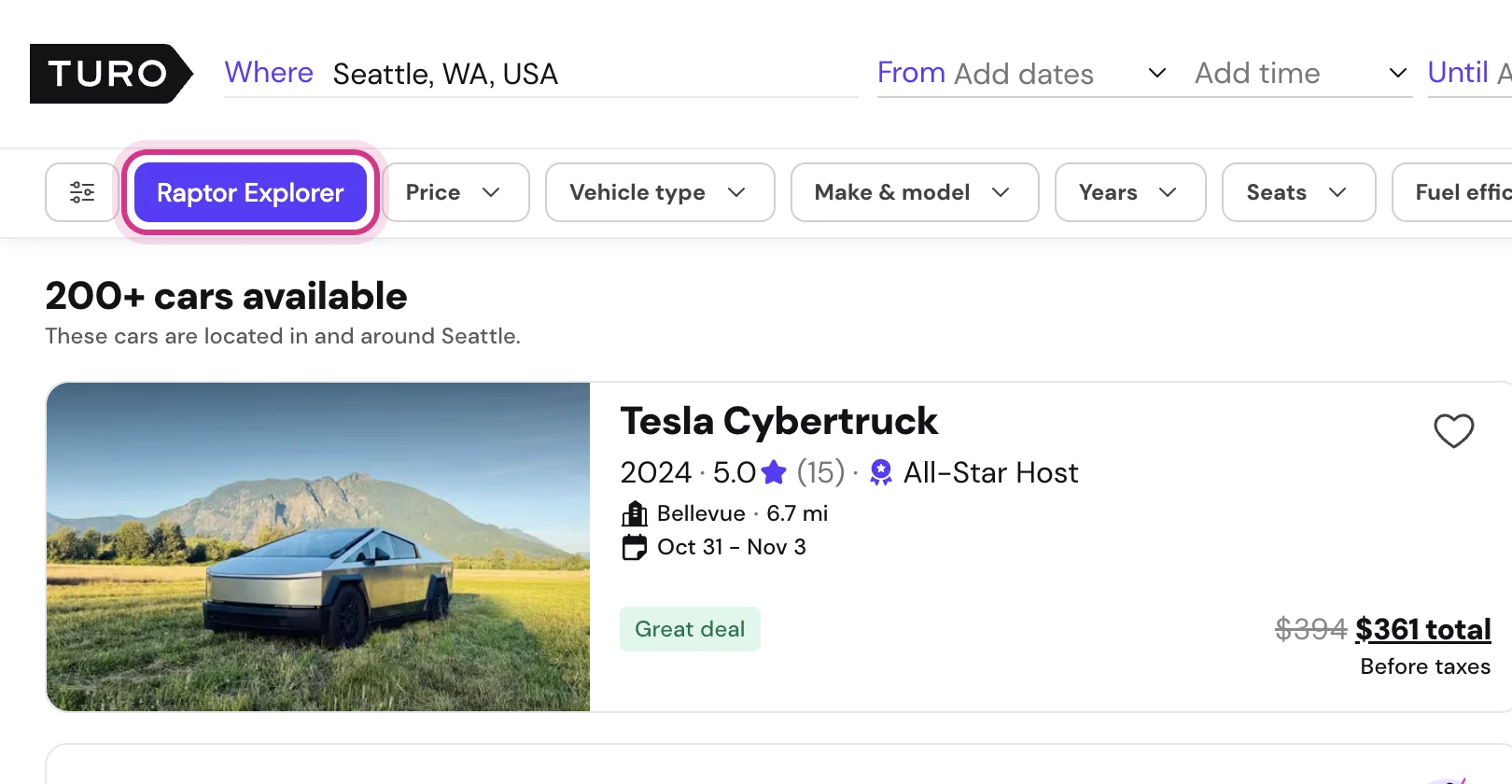
Go to turo.com and search for cars in the city where you want to host. Set dates a few weeks or months ahead: the search then shows more cars. On the results page, click the Raptor Explorer button above the filters.
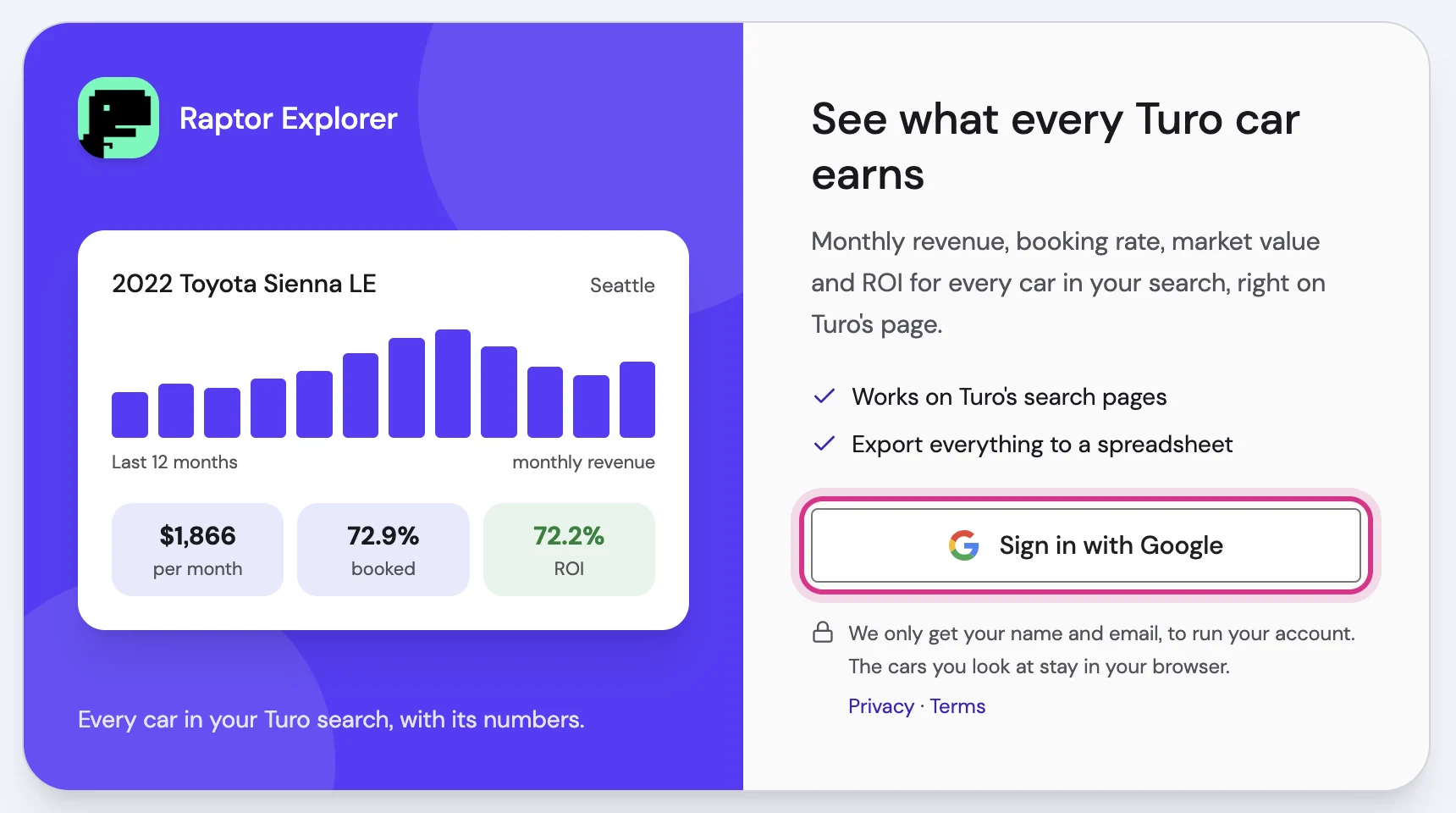
Sign in with Google
The first time, the panel asks you to sign in. Click Sign in with Google and choose your account in the small window Chrome opens.
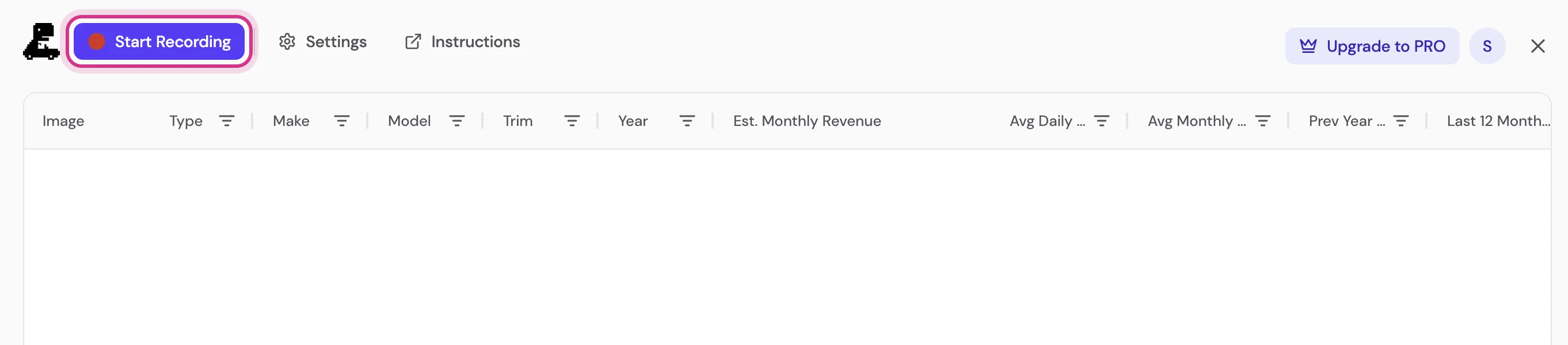
Add the cars: Start Recording
The panel opens over the page with an empty table. Click Start Recording: the cars in your search are added right away, and while recording is on, every search you make on Turo adds its cars too. Nothing is collected until you start recording.
Analyze them: Enrich Data
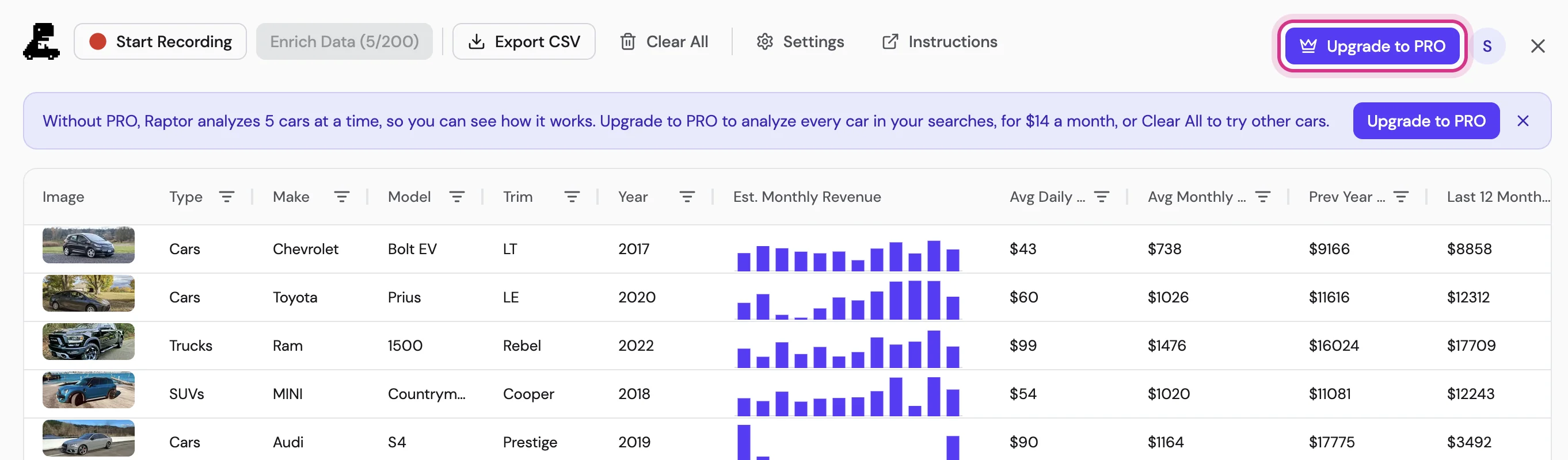
Click Enrich Data. Raptor analyzes the cars one by one, about 3 seconds each: without PRO 5 cars at a time, on PRO all of them. Nothing is analyzed until you click it. Revenue, utilization and ROI fill in row by row.
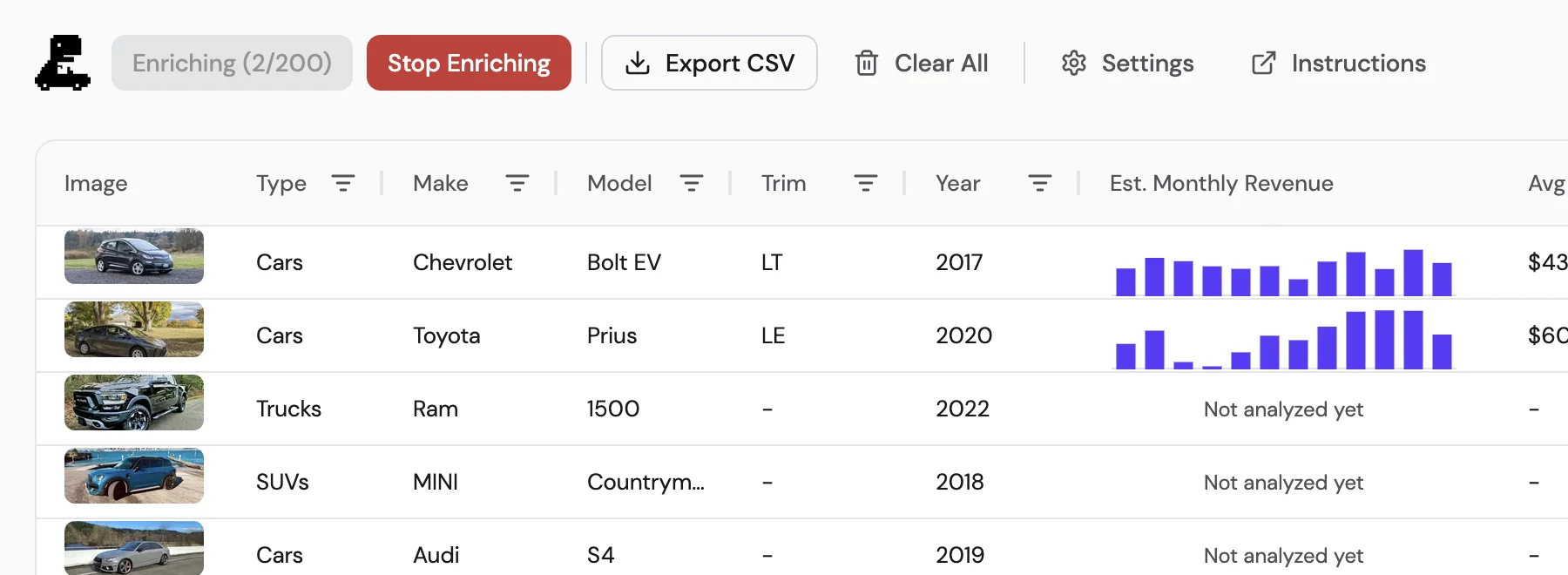
Cars that haven’t been analyzed yet show Not analyzed yet in the chart and a dash in the number columns. When the run ends you can sort and filter any column, or download the table with Export CSV.
Recording, but no cars? If Stop Recording is showing and the table stays empty, Turo hasn’t loaded results since the page opened. Close the panel and move the map or change a filter: Raptor adds the cars Turo loads.
3 Collect more cars
Raptor reads the search results Turo sends to the page. It never searches on its own: what you see in Turo’s results is what can go into the table, and cars are added only while recording is on.
Record a whole area
- Open the panel and click Start Recording. The cars in the search on screen are added right away, and the Raptor Explorer button on the page shows a red dot while recording is on.
- Close the panel and use Turo as usual: move and zoom the map, click Search this area, change dates or filters.
- Each time Turo loads results, Raptor adds the cars that aren’t in the table yet and shows “Added N new vehicles” at the bottom of the page.
- Open the panel and click Stop Recording when you have the area you want. Recording stays on until you stop it, even after you close Turo.
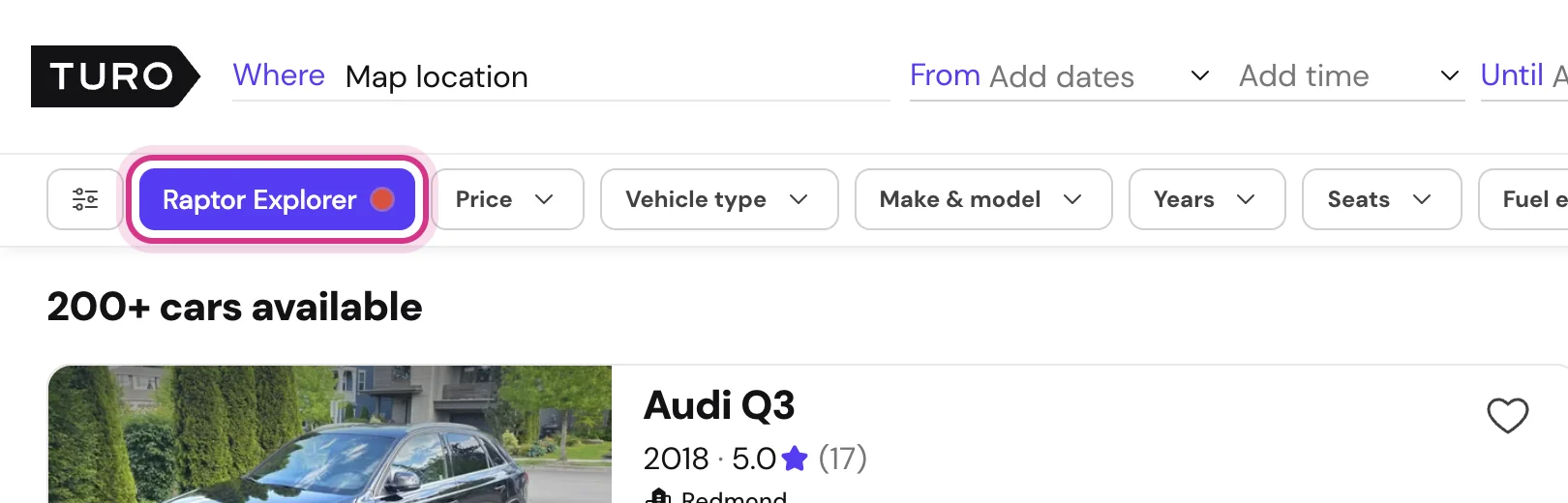
Turo returns a limited number of cars per search, so pan and zoom the map to cover a whole city.
Start over
Clear All removes every car from the table after you confirm. It can’t be undone, so export first if you want to keep the data.
Your table is saved in Chrome on this computer. It stays when you close the tab or restart Chrome, until you clear it or remove the extension.
4 Analyze cars
Collected cars show their make, model, host and prices. Their revenue, utilization and ROI come from analyzing them, which the panel calls Enrich Data.


What happens to each car
- Raptor reads the listing’s details from Turo, using the dates of your search.
- It reads the car’s daily prices and availability from January 1 of last year to today.
- It looks up the car’s market value from current listings of the same year, make, model and trim.
The results are saved with the car, and the table works out every figure from them (see Columns and formulas).
Start and stop a run
Click Enrich Data (x/y), where x is how many cars are analyzed and y the size of the table. Nothing is analyzed until you click it. Only cars not yet analyzed are processed, so a stopped run continues where it left off.
While a run is going, the button reads Enriching (x/y) and Stop Enriching ends it. Closing the panel also ends it.
How long it takes
Each car takes at least 3 seconds, because Raptor spaces its requests to Turo at least a second apart. 200 cars take about 10 minutes. The run keeps its speed when the tab is in the background, so you can work in another tab.
When Turo slows down
If Turo starts refusing requests, Raptor pauses and shows “Turo is limiting requests — paused until (time), then continuing slower”. The first pause is 15 seconds and each one in a row doubles, up to 8 minutes. Raptor then continues more slowly, and speeds up again once requests succeed.
After 6 pauses in a row the run stops with “Turo is temporarily limiting requests from this browser”. Everything analyzed so far is saved. Try again later: Enrich Data continues where it stopped.
“N vehicle(s) could not be enriched” usually means a listing was removed or paused. Those cars stay in the table and are tried again on the next run.
5 Columns and formulas
Every figure comes from the car’s Turo calendar: for each day since January 1 of last year, its listed price and whether it was available. The table works the figures out each time it opens, so Settings apply to every car at once.
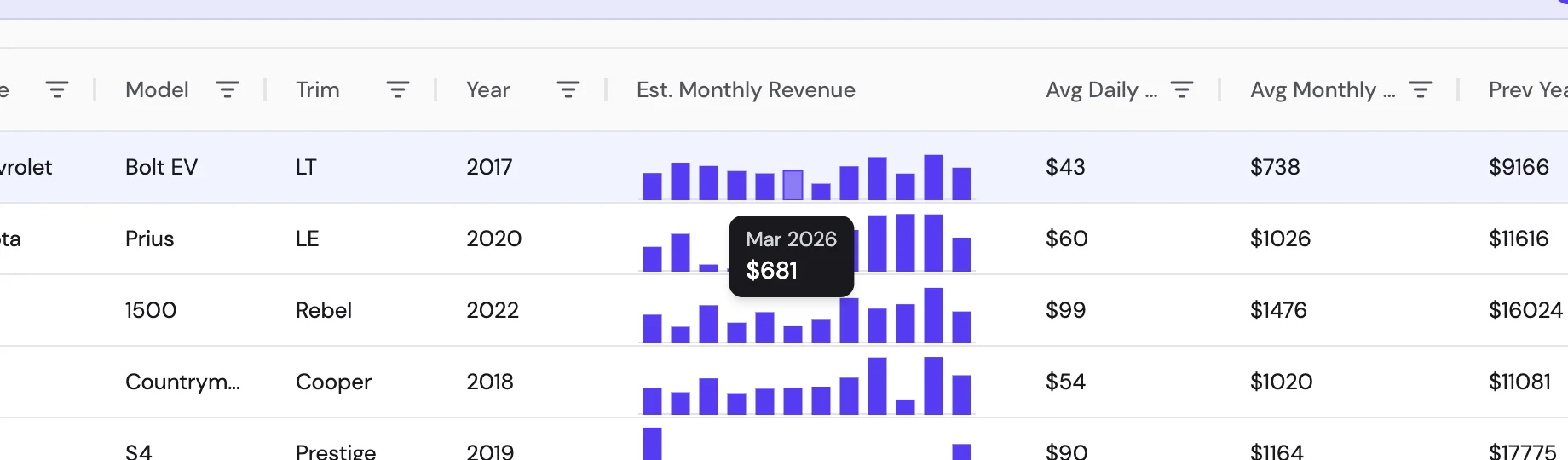
How a booking is counted
- A day counts as booked when Turo shows the car unavailable for the whole day.
- A trip is a run of booked days plus the day before it, the pickup day.
- A trip earns the listed prices of its days. A trip that spans two months is split between them day by day.
- Counting starts on January 1 of last year, or on the day the car was listed if that is later.
A day the host blocks for their own use looks the same as a booked day. Prices are the listed daily prices before Turo’s share, unless Apply Protection Plan Rate is on. Treat the figures as estimates.
Revenue columns
| Column | What it shows |
|---|---|
| Est. Monthly Revenue | A bar per month for the 12 full months before this one. Hover a bar for its amount. |
| Avg Daily Price | The average listed price of the booked days, from January 1 of last year to the day the car was analyzed. |
| Avg Monthly Revenue | The average of the months that had revenue. Months with none are left out. |
| Prev Year Revenue | Total revenue in the last calendar year, from the listing date if it was listed during that year. |
| Last 12 Month Revenue | The sum of the 12 months in the chart. |
Performance columns
| Column | What it shows |
|---|---|
| Utilization | Booked days divided by days with calendar data, from the start of counting to the start of this month. Green at 75% or more, highlighted as low under 50%. |
| ROI | Avg Monthly Revenue × 12, divided by Avg Market Value. Blank without a market value. Green at 50% or more, highlighted as low under 25%. With Include Zero Revenue Months in ROI on, the yearly figure is the last 12 months’ revenue divided by the months the car has been listed (at most 12), times 12. |
| Avg Market Value | What the car costs to buy: the average asking price of current listings of the same year, make, model and trim (from Auto.dev, searched with the trim and then without it), or VinAudit’s estimate when there are none. |
Car and listing columns
| Column | What it shows |
|---|---|
| Image, Type, Make, Model, Trim, Year | From the listing. |
| Days on Turo | Days since the car was first listed. |
| Trips, Favs, Rating, Reviews | Completed trips, times added to favorites, average rating, number of reviews. |
| Listed | The date the car was first listed. |
| Vehicle ID, Listing URL | Turo’s ID for the car and a link to its listing. |
Host columns
| Column | What it shows |
|---|---|
| Instant Book | Where the host allows instant booking: airport, custom, home location, points of interest. |
| Host, Host ID, Host Status | The host’s name and photo, Turo ID, and All-Star or Pro status. |
| P Plan | The share of each trip the host keeps under their protection plan. |
| Airport Delivery, Extras, Badges | Whether the car is delivered to airports, the extras offered, and Turo’s badges for the listing. |
Location and terms columns
| Column | What it shows |
|---|---|
| City, State | Where the car is listed. |
| Transmission, Color | From the listing. |
| Daily, Weekly, Monthly Distance | Miles or kilometers included per day, week and month. |
| Excess Fee | The charge per mile or kilometer over the limit. |
| Weekly Discount, Monthly Discount | The host’s discount for trips of 7 or more days and 31 or more days. |
Sort and filter
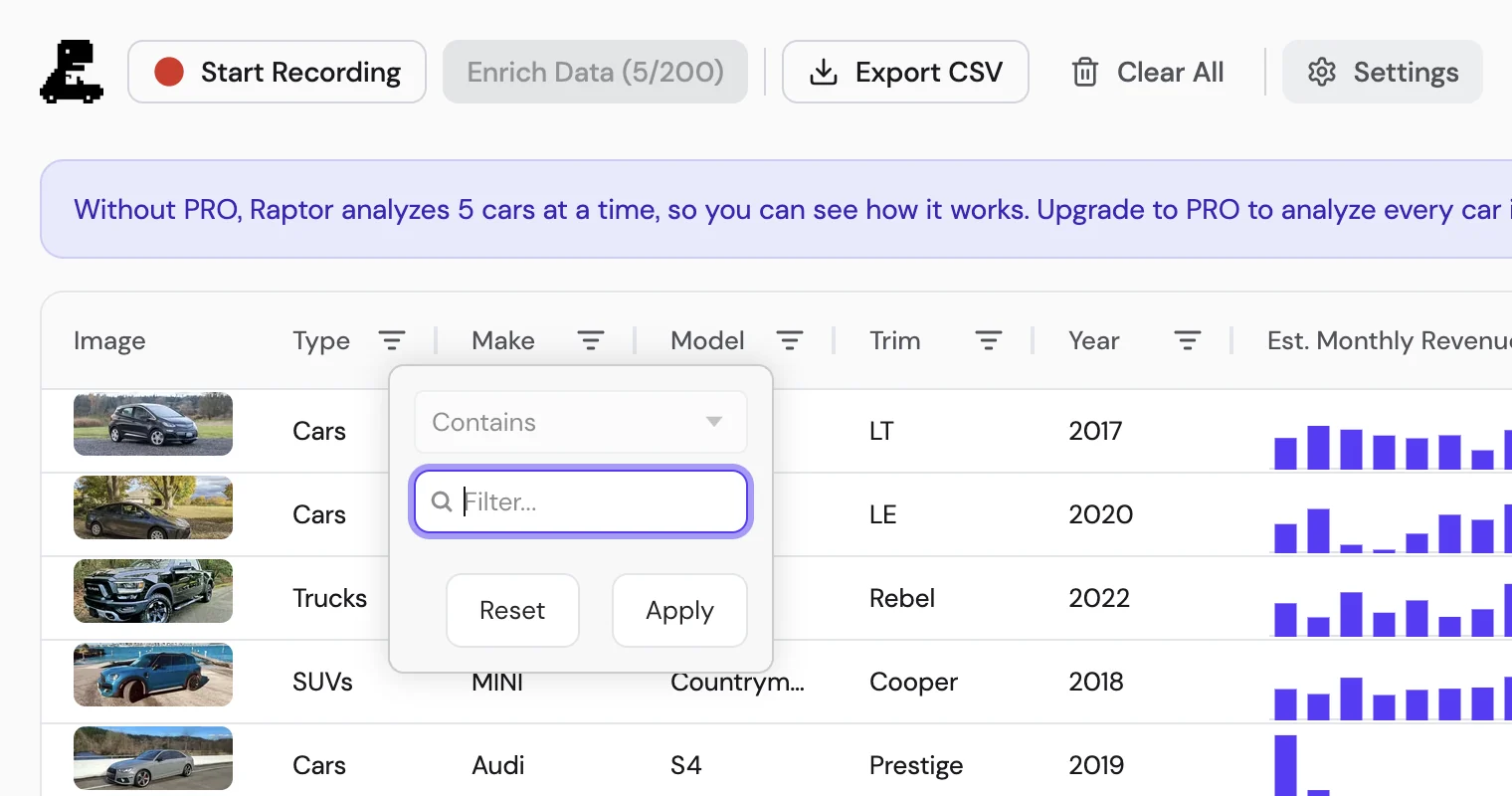
Click a column’s header to sort by it, and drag its edge to resize it. The filter icon next to a header filters that column: text columns by “contains”, number columns by a range, at least, or at most.
6 Settings
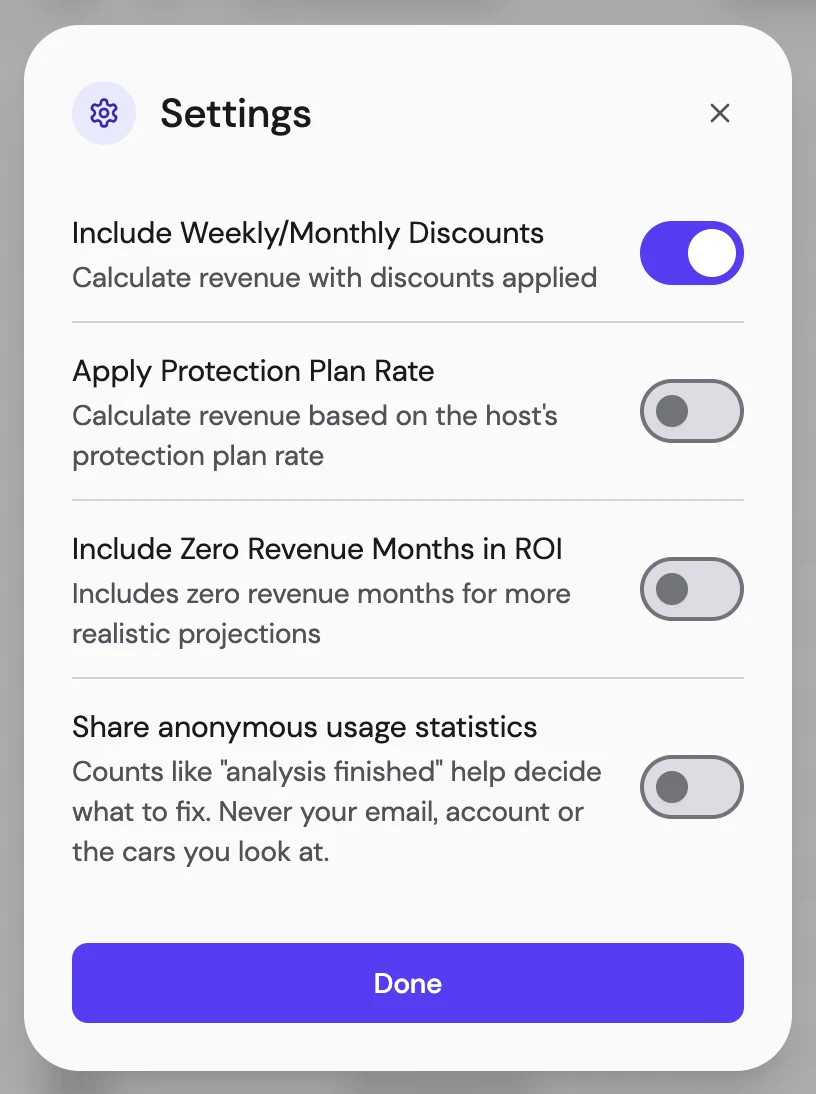
Click Settings in the panel’s toolbar, or open them from the extension’s options page. A change applies to every car in the table straight away, and to your next export.
| Setting | Default | What it changes |
|---|---|---|
| Include Weekly/Monthly Discounts | On | On, a trip of 31 days or more earns the listed prices minus the host’s monthly discount, and a trip of 7 days or more, minus the weekly discount. Off, every trip earns the full listed prices. |
| Apply Protection Plan Rate | Off | On, revenue is multiplied by the share the host keeps under their protection plan (the P Plan column): the host’s take rather than what guests paid. |
| Include Zero Revenue Months in ROI | Off | Changes ROI only. Off, ROI uses the average of the months that had revenue, which flatters a car that sat idle for a few months. On, months without revenue count too, which is closer to what the car would earn you in a year. |
| Share anonymous usage statistics | On, except in Europe | Sends anonymous counts of what the extension does, never your email, account or the cars you look at. Off by default when your browser’s time zone is in Europe. |
7 Export to CSV
Click Export CSV in the panel’s toolbar. Chrome downloads vehicles-export-YYYY-MM-DD.csv, which opens in Excel, Numbers and Google Sheets.
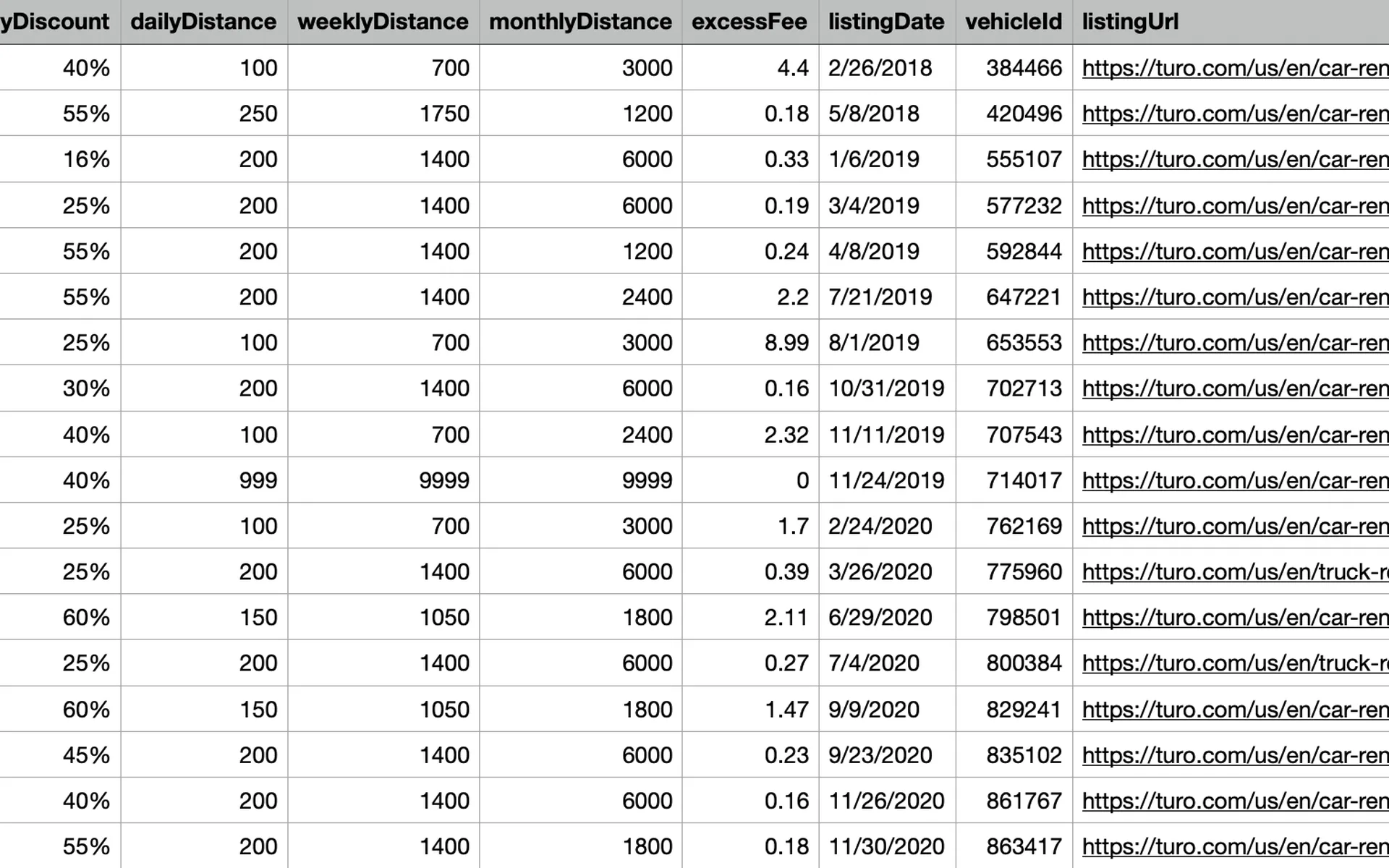
- One row per car: every car in the table, whatever filters or sort order you have on screen.
- The table’s columns, the photo URL, and a Revenue Settings column recording which settings were on.
- One column per month for the last 12 months, newest first.
Export works with or without PRO.
8 Upgrade to PRO
Without PRO: 5 cars at a time
Raptor has no free plan. To show you how it works, it analyzes 5 cars at a time without PRO, with every column (ROI included), every setting and the CSV export. To try other cars, click Clear All and analyze 5 more.
PRO
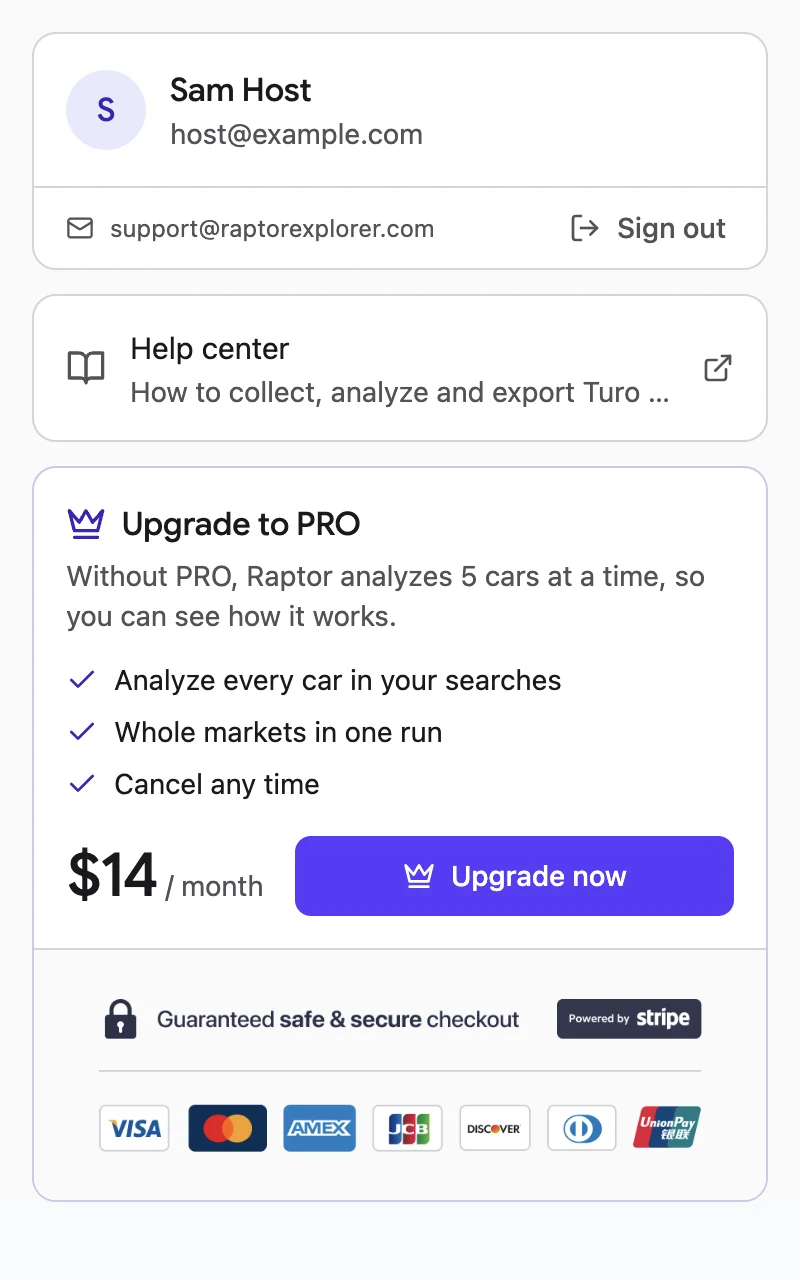
PRO is $14 a month and analyzes every car in your searches, so you can compare a whole market in one run. Subscriptions started at an earlier price keep that price.
How to upgrade
Click Upgrade to PRO at the top right of the panel, or in the toolbar popup. When 5 cars in your table are analyzed, the panel says so and Upgrade to PRO turns purple.
- If your Google account already has PRO, it’s switched on and nothing is charged.
- Otherwise Stripe’s secure checkout opens in a new tab. When you’ve paid, PRO switches on in the extension within a few seconds.
PRO on another computer
Sign in with the Google account you subscribed with: PRO switches on and you’re not charged again. If you’re signed in with another account, click the Raptor icon in Chrome’s toolbar, Sign out, and sign in with the right one.
Manage or cancel
Click the Raptor icon in Chrome’s toolbar, then Manage Subscription. Stripe’s billing portal opens, where you can see invoices, update your card and details, or cancel. After you cancel, PRO stays on until the end of the month you paid for.
You can also open the portal from Stripe’s login page with the email you subscribed with.
Refunds
Raptor has a 30-day money-back guarantee. Write to support@raptorexplorer.com within 30 days of a payment.
9 Your account and data
Signing in and out
Raptor asks you to sign in with Google the first time you open it: your Google account is how PRO knows it’s you. To sign out, click the Raptor icon in Chrome’s toolbar, then Sign out. Signing out also turns PRO off in this browser until you sign in again.
What stays on your computer
The cars you collect, their calendars and prices, and your settings are stored in Chrome on this computer. They are not uploaded. Clear All deletes the cars; removing the extension deletes everything.
What reaches our servers
- Your Google name and email, to run your account.
- Your plan, so the extension knows you are on PRO. Payments are handled by Stripe.
- For market values: a car’s year, make, model and trim, never the listing or your search.
Raptor’s requests to Turo go from your browser, like Turo’s own pages. It does not read your Turo account.
Usage statistics
The extension sends anonymous usage statistics, like “analysis finished” with a count, never your email, account or the cars you look at. Switch them off in Settings with Share anonymous usage statistics. If your browser’s time zone is in Europe, they are off until you switch them on.
The privacy policy has the full details. To delete your account, write to support@raptorexplorer.com.
10 Troubleshooting
I don’t see the Raptor Explorer button
The button appears only on Turo’s search results pages, above the filters. Search for a city, wait for the results, and reload the page if the button still isn’t there.
The table is empty
Raptor adds cars only while recording is on. Click Start Recording: the cars in the search on screen are added, and every search after that adds its cars.
Recording is on but no cars appear
Turo hasn’t loaded results since the page opened. Close the panel and move the map or change a filter: Raptor adds the cars Turo loads.
“Raptor Explorer was updated. Refresh this page to continue.”
Chrome updated the extension while Turo was open. Reload the Turo tab.
“Turo is limiting requests”
Turo is slowing down requests from your browser. Raptor pauses and continues by itself. If the run stops with “Turo is temporarily limiting requests from this browser”, wait an hour or so and click Enrich Data; it continues where it stopped. See When Turo slows down.
“Enrichment stopped after repeated errors”
Check that turo.com loads normally in another tab and that you are online, then click Enrich Data to continue.
“Could not load your saved vehicles”
Your data is still stored. Click Retry; if the message stays, restart Chrome.
A car shows no revenue
Cars that haven’t been analyzed show “Not analyzed yet” in the chart and a dash in the revenue columns. Click Enrich Data to analyze them. Without PRO, Raptor analyzes 5 cars at a time: click Clear All to try other cars, or upgrade to PRO. A car analyzed with no booked days since January of last year shows “No bookings”.
I paid but Raptor still stops at 5 cars
Close and reopen the panel. If it still stops at 5 cars, sign out (click the Raptor icon in Chrome’s toolbar, then Sign out) and sign in again with the Google account you subscribed with. Still stuck? Write to us with that account’s email.
The Google window says “Access blocked”
Write to us with the error code it shows. If you closed the window by mistake, click Upgrade to PRO again.
Billing is unavailable
Try again in a minute. If it keeps happening, write to support@raptorexplorer.com.
Still stuck?
Write to support@raptorexplorer.com and include your browser and the extension's version.
Raptor Explorer is not affiliated with Turo Inc. "Turo" is a registered trademark of Turo Inc., used here only to identify the service the extension works with; it does not imply any affiliation, endorsement or partnership.